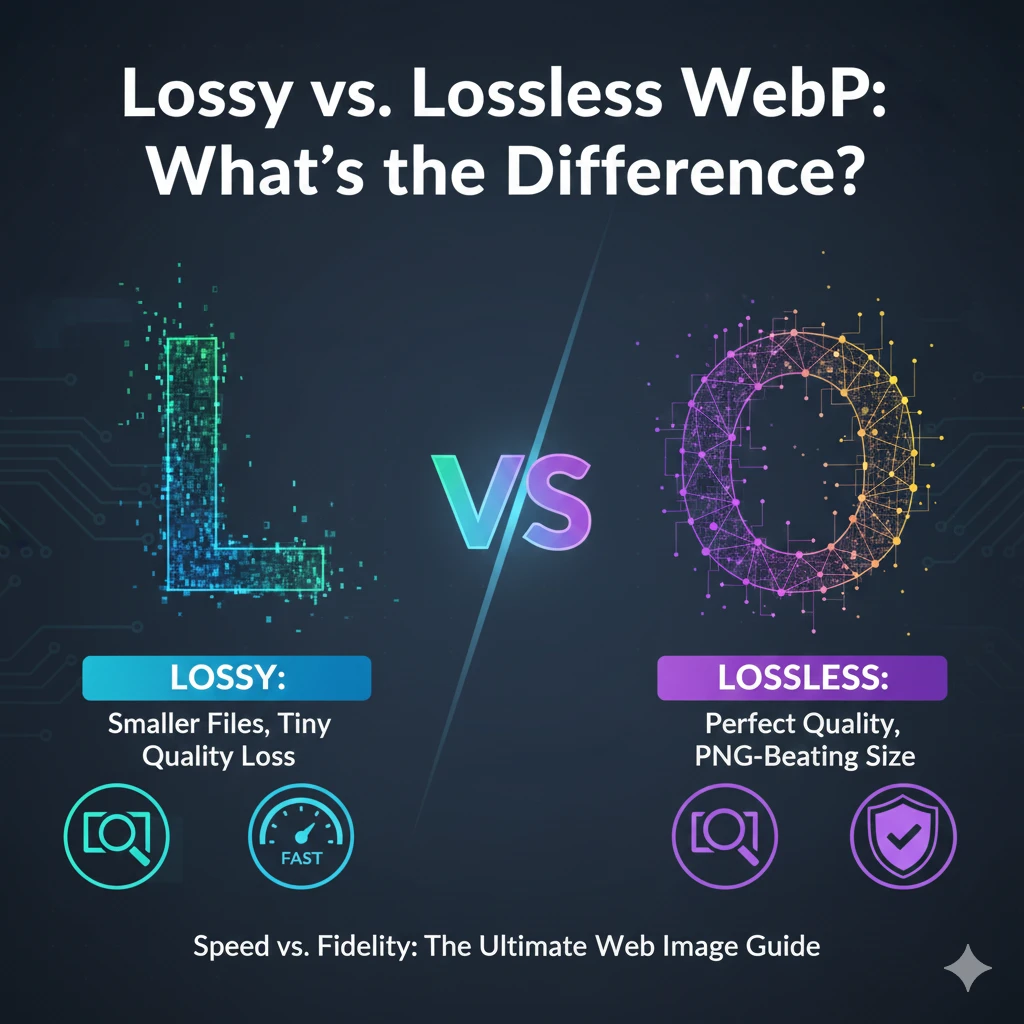
The WebP format explained is Google’s attempt to create a single, superior image format for the internet. Released in 2010, this modern format was designed to give developers better control over image compression. Since images are often the largest asset on a webpage, mastering this control is vital for achieving excellent WebP performance and gaining those crucial WebP SEO benefits.
Why Compression is Essential
Every second counts online. Large, unoptimized images slow down your website, leading to higher bounce rates and poorer search engine rankings. This is why image compression is key. WebP’s biggest advantage over WebP vs other image formats (like JPEG and PNG) is that it offers two distinct compression methods in one file type.
Key Takeaway
Understanding the differences in WebP compression methods is the key to optimizing your entire site. In this article, we will explore the core distinctions between lossy vs lossless WebP, helping you make an informed choice for every image on your website.
Understanding WebP Image Format
What is WebP?
The WebP image format is a modern file standard developed by Google, introduced in 2010. It was designed to address the problem of slow-loading websites caused by large image files. WebP’s primary goal is to provide superior compression to traditional formats while maintaining excellent visual quality. It supports both single images and animated sequences, offering a robust solution for nearly all visual web content.
Key Features and Comparison
The flexibility of WebP is what drives its widespread WebP optimization.
- Transparency and Animation: A key advantage is its support for full 8-bit transparency and efficient animation, similar to GIF. This allows for rich animated graphics with significantly smaller files (WebP animation lossy and WebP animation lossless).
- WebP vs TIFF and Others: When compared against traditional formats like JPEG, PNG, GIF, and WebP vs TIFF, WebP consistently delivers the smallest file sizes. For example, it shrinks PNG files by 26% and GIF files by up to 64% in its lossy animation mode.
This strong performance ensures better loading speeds across the board.
Browser Support and Adoption
WebP’s broad adoption makes it viable for most web projects. WebP browser support is now comprehensive across all major platforms, including Chrome, Edge, Firefox, and Safari (since iOS 14/macOS Big Sur). While legacy support requires fallbacks, the vast majority of users can view the format natively. This wide support makes the WebP file formats the preferred modern choice for developers seeking the best performance. If you are learning with a WebP tutorial, implementation is now straightforward.
Lossy vs Lossless WebP Compression: A Detailed Comparison
The fundamental difference between lossy webp and lossless webp determines how much data is sacrificed for file size. Knowing the right method is essential to effectively compress webp images.
Lossy WebP: Speed Over Fidelity
Lossy compression permanently removes data deemed unnecessary by the algorithm to achieve the smallest possible file size. This is how WebP delivers such dramatic reductions compared to JPEG.
- How it Works: Lossy WebP uses predictive coding, leveraging the VP8 video codec principles. The encoder predicts the color of neighboring pixels, then only stores the difference. This eliminates redundant information.
- File Size & Quality: Lossy WebP is incredibly efficient. It creates files that are typically 25% to 34% smaller than comparable JPEG files while maintaining similar visual quality (webp quality comparison). The minor degradation in webp image quality is often imperceptible, making it ideal for the web.
- Use Cases: Lossy WebP is preferred for photographs, large background images, and general content where speed is the top priority.
Lossless WebP: Perfect Clarity
Lossless compression maintains perfect image quality by removing only redundant data, allowing the original image to be reconstructed exactly upon decoding.
- Mechanism: This method uses advanced techniques like dictionary coding, Huffman coding, and predictive coding based on local palettes, ensuring exact pixel reconstruction.
- File Size & Transparency: Lossless WebP is highly optimized, resulting in files about 26% smaller than equivalent PNG files. It fully supports transparency.
- Transparency Note: A key feature of WebP is that it supports webp transparency lossy as well as lossless, a feature older formats cannot match.
- Use Cases: Lossless WebP is the ideal choice for graphics, logos, images with fine text, or screenshots that require absolute fidelity.
Key Compression Differences
| Aspect | Lossy WebP | Lossless WebP |
| Data Removal | Permanent (Irreversible) | None (Reversible) |
| Typical Gain | 25–34% smaller than JPEG | ~26% smaller than PNG |
| Image Quality | Slight, usually imperceptible degradation | Perfect, pixel-for-pixel fidelity |
| Preferred Use | Photographs, Large Banners | Logos, Icons, Graphics with Text |
Understanding these webp compression types is key to finding the right balance for your website.
WebP Compression Compared to Other Formats (JPEG, PNG, GIF)
Understanding the differences in WebP compression requires direct comparison against the established formats it aims to replace. This comparison highlights the modern WebP file type advantages for performance.
WebP vs JPEG (Lossy Efficiency)
WebP vs JPEG primarily compares two lossy formats used for photographs.
- Compression Ratio: Lossy WebP is significantly more efficient. At equivalent visual quality (SSIM index), WebP files are typically 25% to 34% smaller than JPEG files.
- Quality & Features: WebP maintains better visual fidelity in high-compression scenarios and offers the crucial advantage of supporting transparency, which JPEG entirely lacks. For most photographic content, WebP is the superior choice.
WebP vs PNG (Lossless and Transparency)
The webp vs png comparison focuses on lossless quality and transparency.
- Compression Ratio: Lossless WebP vs PNG demonstrates WebP’s technological edge. Lossless WebP files are consistently around 26% smaller than comparable PNG files.
- Transparency: Both formats support full alpha channel transparency. However, WebP achieves this with greater file size efficiency. Lossy WebP vs PNG shows WebP can even deliver transparency with lossy compression, which results in files up to three times smaller than a lossless PNG.
Animated WebP vs GIF
Animated WebP offers massive advantages over the legacy GIF format.
- Size Reduction: Animated WebP files are drastically smaller. Conversions from animated GIFs can yield size reductions of up to 64% using lossy WebP animation.
- Quality: WebP supports 24-bit color depth and 8-bit transparency, unlike GIF’s limitation to 256 colors. This provides much smoother, higher-quality animations at a fraction of the file size.
Also Read: What is a WebP File? Complete Guide for Beginners
Advanced Features of WebP: Transparency and Animation Support
Transparency Handling
WebP’s ability to handle transparency is far more advanced than older formats. It supports an 8-bit alpha channel, identical to PNG, which allows for 256 levels of opacity for seamless blending. Crucially, WebP enables this transparency in both compression modes:
- WebP Transparency Lossless: This mode guarantees perfect pixel fidelity, making it ideal for logos or detailed graphics where transparency must be exact. The file size remains significantly smaller than PNG.
- WebP Transparency Lossy: This capability is unique and incredibly powerful. It allows developers to achieve a massive file size reduction while still including a transparent background. This is perfect for large photos or banners where minor color data loss is acceptable, maximizing performance gains.
Animation Support
WebP is also designed to be a superior replacement for the GIF format, offering a wider color palette and superior compression for moving images.
- WebP Animation Lossless: Use this mode for simple graphics or animations containing sharp lines and text, ensuring no pixel data is lost between frames.
- WebP Animation Lossy: Use this mode for complex, colorful animated graphics, effectively creating a compressed video loop. Converting GIFs to WebP animation lossy can yield file size reductions of up to 64%, drastically improving page loading times while offering higher-quality visuals than a GIF.
Choosing the right mode depends on balancing file size against the complexity of the animated content.
Optimizing Images Using WebP for Websites
Best Practices for WebP Conversion
Effective WebP optimization starts with choosing the right tools and settings. For the easiest implementation, especially on platforms like WordPress, plugins such as Imagify or ShortPixel automatically handle the conversion of your existing JPEGs and PNGs to WebP. For greater control, tools like Google’s own command-line utility cwebp or the online tool Squoosh allow you to fine-tune your settings. The best practice is to always resize your image to the exact dimensions needed before converting it to WebP; this minimizes file size dramatically.
Balancing Speed Versus Quality
Finding the right balance between WebP speed vs quality is crucial for performance. This requires selecting the appropriate compression setting:
- Lossy Setting (Quality Factor): For photographs and complex images, a quality factor between 75 and 85 is the generally accepted best WebP settings. This range maximizes compression while ensuring that the quality degradation is virtually imperceptible to the human eye.
- Lossless Setting: Always use lossless WebP for logos, graphics, and images with sharp text to ensure pixel-perfect fidelity.
Automated tools often use “Smart Compression” to handle this balance for you, simplifying the process for WebP guide for beginners.
Impact on Website Performance
Optimized WebP for websites has a profound impact on speed and user experience. Because WebP images are, on average, 25–34% smaller than JPEGs, they require less bandwidth and load much faster. This improvement is critical for achieving excellent scores in Google’s Core Web Vitals, specifically the Largest Contentful Paint (LCP). Faster load times enhance user engagement and improve WebP performance, leading directly to better SEO rankings. This size reduction is the ultimate WebP efficiency comparison against older formats.
Tools and Techniques for Converting Images to Lossy or Lossless WebP
Converting your existing images to WebP is straightforward, thanks to several powerful tools. The key is choosing the right settings for lossy webp download (for photos) or lossless webp download (for graphics).
Popular WebP Conversion Tools
The best webp conversion tools offer control over the quality factor for lossy compression and the exactness of lossless conversion.
- Online Tools (Beginner-Friendly):
- Squoosh: A free, web-based tool from Google that offers powerful controls. You can adjust the lossy quality slider to find the best webp settings or easily switch to lossless mode. It provides a visual side-by-side comparison.
- CloudConvert/Convertio: These offer easy file upload and download, great for users needing a simple, fast way to convert.
- Desktop Software (Advanced Control):
- cwebp (Command Line): Google’s own encoder is the gold standard for automation and batch processing. It allows developers to specify the exact quality (e.g.,
-q 80for lossy) or force lossless compression (-lossless). - GIMP / Photoshop (with Plugin): These desktop editors allow direct saving to WebP, giving designers control over the output when exporting assets.
- cwebp (Command Line): Google’s own encoder is the gold standard for automation and batch processing. It allows developers to specify the exact quality (e.g.,
Step-by-Step Conversion Guide
This general guide works for how to convert lossy webp and how to convert lossless webp using most tools.
| Source Image Type | Target WebP Mode | Conversion Goal & Settings |
| JPEG (Photo) | Lossy WebP | Ideal for reducing size while maintaining high quality. In the conversion tool, set the quality slider between 75 and 85 for the best balance. |
| PNG (Logo/Graphic) | Lossless WebP | Perfect for reducing the file size (around 26% smaller) while preserving every pixel and full transparency. Explicitly select the “Lossless” option. |
| GIF (Animation) | Lossy WebP Animation | Select the WebP animation format and use a low to moderate lossy setting to achieve the highest size reduction (up to 64% smaller than GIF). |
Always check the output to ensure the webp image conversion guide delivers the file size reduction and quality you need before deploying to your website.
Editing Compatibility and Limitations of the WebP Format
Current Software Support Landscape
WebP editing compatibility has significantly improved in recent years, making the format viable for most modern workflows.
- Native Support: Major web browsers (Chrome, Edge, Firefox, Safari) natively view the format, and modern operating systems (Windows 10/11, macOS) include built-in preview support.
- Editing Software: Professional tools have widely adopted WebP. Newer versions of Adobe Photoshop (version 23.2 and later) offer native support, eliminating the need for plugins. GIMP and popular online editors like Photopea and Canva also handle both lossy and lossless WebP files effortlessly. This widespread support addresses earlier concerns regarding the limitations of the WebP format in professional design.
Challenges and Limitations
Despite high compatibility, two primary challenges arise when using WebP in a traditional workflow:
- Legacy Software: Older versions of design software (especially pre-2022 versions of Adobe products) still require a separate plugin to open or save WebP files. This creates friction when collaborating with designers or developers using outdated toolsets.
- Conversion Caveats: The primary challenge is the nature of lossy compression.
- Lossy Editing: If you edit a lossy WebP file and then re-save it as lossy, you introduce a second layer of data loss. This cumulative degradation can harm image quality over time. Best practice is to always edit the original JPEG or PNG file and convert it to WebP only as the final step for webp for websites deployment.
- Transparency Loss: When converting a WebP file with transparency back to an incompatible format like JPEG, the transparent areas will automatically fill with a solid color, often white or black. Always convert back to PNG if you need the alpha channel preserved.
FAQs: Lossy vs Lossless WebP
Here are the answers to your frequently asked questions, summarizing the key differences between the two WebP compression types.
What is the difference between lossy and lossless WebP?
Lossy WebP compresses images by slightly reducing quality to achieve much smaller file sizes. Lossless WebP preserves the exact original image quality with no loss of data, offering file size reduction through more efficient encoding.
When should I use lossy WebP?
Use lossy WebP when file size matters more than perfect pixel fidelity, such as for photographs, large background website images, or banner images where faster loading is crucial for performance.
When should I use lossless WebP?
Use lossless WebP for images that require high fidelity, such as graphics, logos, icons, or images with sharp text. This guarantees perfect clarity while still reducing file size compared to PNG.
Does lossy WebP support transparency?
Yes, lossy WebP can support transparency, but it is generally recommended to use lossless WebP for transparent images (like logos) to maintain perfect edge quality and clarity.
Which WebP format is better for website performance?
Lossy WebP is generally better for maximizing website performance and achieving the fastest loading times because it produces the absolute smallest files without a noticeable drop in visual quality.
Can WebP replace PNG and JPEG?
Yes, WebP can replace PNG and JPEG in most cases. It offers the file size efficiency of JPEG, the transparency support of PNG, and optional animation, combining the best features of both.
How does WebP affect SEO and page speed?
Smaller WebP files significantly reduce page load times, which directly improves key Core Web Vitals (like LCP) and leads to better SEO rankings on Google.
Are lossy WebP images visually different from the original?
The visual difference is usually minimal and often imperceptible to the human eye, especially when high-quality settings (75–85) are used during the conversion process.
Does lossless WebP compress images efficiently?
Yes, lossless WebP still reduces file size by about 26% on average compared to PNG, without sacrificing any image quality. This makes it highly efficient for graphics.
Which tools can I use to convert images to lossy or lossless WebP?
Online converters like Squoosh (from Google), Canva, and desktop tools like Photoshop or GIMP support converting images to both lossy (using a quality slider) and lossless (by selecting the lossless option) WebP formats.
Conclusion: Mastering WebP Compression
Mastering WebP is all about understanding the core differences in WebP compression and choosing the right tool for the job. The choice between lossy and lossless modes dictates your website’s performance and visual accuracy. For nearly all photographic content and large banners, the slight quality sacrifice of lossy WebP is worth the massive speed boost it provides. This is your go-to choice when page load time is the primary concern.
Making the Right Choice
When you are choosing between lossy vs lossless WebP, follow these simple guidelines:
- Choose Lossy WebP for photos and complex images (aim for quality 75–85). This maximizes file size reduction and directly improves Core Web Vitals.
- Choose Lossless WebP for graphics, logos, and icons with sharp edges and text. This guarantees perfect pixel fidelity while still offering significant file size savings over PNG.
Ultimately, understanding the “Lossy vs Lossless WebP – What’s the Difference?” empowers you to create a faster, more efficient website that improves both user experience and SEO ranking.