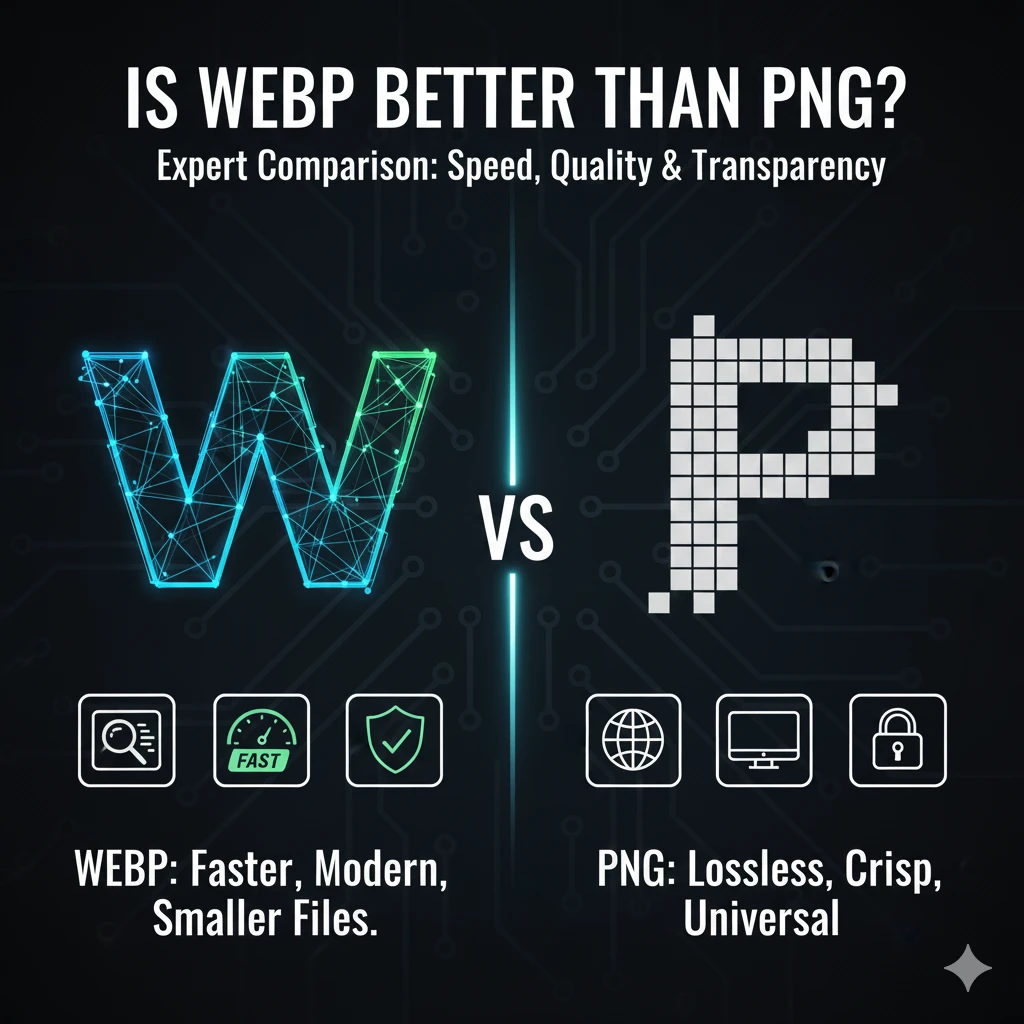
The WebP format is highly efficient, but Windows users often find themselves needing to convert these files to the more traditional PNG format. Why? Because PNG offers universal compatibility for editing, and sometimes, older software simply won’t open the newer WebP format.
WebP is Google’s modern image format, designed for superior compression and web speed. PNG (Portable Network Graphics) is a long-established, lossless format known for its perfect clarity and universal support for transparency. While WebP is great for website speed, PNG is often the necessary format for complex editing and integration with older software on a Windows PC.
Why Conversion is Necessary on Windows?
While modern Windows 10 and 11 can view WebP, basic tools or specific applications may not fully support it. If you need to manipulate a WebP image in a program that lacks compatibility, you need to convert webp to png windows. This quick conversion ensures you don’t lose quality and can continue your work without interruption.
Overview of This Guide
This article provides a detailed, step-by-step guide on how to convert webp to png on windows. We will explore several easy methods, including using free webp to png converter for windows software and quick browser tricks, ensuring you can handle any WebP file that comes your way.
Understanding WebP and PNG Formats
What is WebP?
The WebP format is Google’s modern image solution, designed specifically for optimal web delivery. WebP excels because it supports both lossy and lossless compression, resulting in significantly smaller file sizes than older formats. A key feature is its robust WebP transparency support in both lossy and lossless modes, something JPEG cannot match. Despite its efficiency, the WebP format Windows compatibility can be challenging with certain older or specialized applications.
What is PNG?
PNG (Portable Network Graphics) is a long-established standard known for its PNG lossless compression. This means PNG files retain perfect, pixel-for-pixel quality, making them ideal for logos, graphics, and images containing text. PNG is universally recognized across all operating systems and is renowned for its wide support for transparent backgrounds, offering high-quality alpha channel blending.
WebP vs PNG and Conversion Rationale
The modern web favors WebP for speed, but PNG remains essential on the desktop. While WebP minimizes data transfer, the familiarity and universal PNG lossless compression make it the default choice for editing workflows. Reasons to convert .webp to .png windows include:
- Editing Ease: Many professional or older image editors lack native WebP support.
- Software Compatibility: Ensuring the image works reliably with all desktop applications.
Converting tools like Imagemagick webp to png windows or specialized apps like Irfanview webp to png are necessary bridges between web efficiency and desktop compatibility.
Native Methods to Convert WebP to PNG on Windows
The easiest way to change webp to png windows without installing new software is by using the built-in Microsoft Paint application. This method is quick, simple, and works well for single images on both convert webp to png windows 10 and webp to png windows 11 systems.
Using Microsoft Paint (Single File Conversion)
Microsoft Paint is pre-installed on every Windows PC and supports opening WebP files and saving them in other formats. This is the simplest way to save webp as png windows.
- Open in Paint: Right-click your WebP image file and select Open with > Paint.
- Save As PNG: Once the image is open, click the File menu in the top-left corner.
- Select Format: Click Save as and choose the PNG picture format.
- Save: Choose a new name and location, then click Save.
This process results in a high-quality webp to png without quality loss windows conversion, as PNG is a lossless format.
Limitations of the Paint Method
While easy, the Paint method has notable drawbacks:
- Single File Only: You must repeat the open webp in paint windows process for every image, making batch conversion tedious and impractical for large folders.
- Transparency Loss: If your WebP image has a transparent background, Paint might remove it during the conversion process, filling the background with white.
For bulk conversions, you will need the power of dedicated tools or scripting methods like convert webp to png using powershell (which requires installing Google’s dwebp tool).
Using Third-Party Software for Conversion
While built-in tools like Paint offer a quick fix, using dedicated third-party software is the best way to batch convert webp to png windows efficiently and reliably. These tools are designed for power users and offer essential features like retaining transparency and processing multiple files simultaneously.
Benefits of Desktop Converters
Dedicated desktop converters, often called a webp to png desktop app, provide crucial advantages:
Overview of Popular Desktop Converters
- XnConvert: This is an excellent, free, and lightweight option. It is specifically designed for batch processing, supporting dozens of input and output formats. You simply drag your WebP folder in, select PNG as the output, and run the conversion.
- IrfanView: A fast and compact image viewer that includes powerful batch conversion capabilities. Its minimal interface makes it perfect for quickly processing large numbers of files.
- Any2Pic/Dedicated Tools: Many specialized, simple tools exist solely to perform the webp to png conversion, often streamlining the process further for specific needs.
These tools are highly recommended for anyone needing consistent and reliable conversion beyond simple one-off fixes.
Converting WebP to PNG with Popular Image Editors on Windows
For professional editing and reliable conversion, dedicated image editors and command-line tools offer the best results for handling the WebP format.
Using Photoshop with the WebPShop Plugin
While Photoshop 23.2 and newer versions offer native WebP support (via File > Save a Copy), using the dedicated WebPShop plugin provides more control over the encoding/decoding process, which is useful when dealing with complex files or animations.
- Install Plugin: Download the WebPShop plugin (an
.8bibinary file for Windows) and copy it to your Photoshop plug-ins directory. - Open: Use File > Open (or File > Open As in older versions) to load the WebP image into Photoshop.
- Convert: Once edited, go to File > Save a Copy… or File > Export As…
- Save as PNG: Select PNG from the format dropdown list and click Save. This seamlessly converts your photoshop webp to png windows without compromising quality.
Using GIMP for Conversion
GIMP (GNU Image Manipulation Program) offers a free, powerful alternative that often includes native WebP support without needing extra plugins. This makes gimp webp to png windows conversion fast and accessible.
- Open: In GIMP, navigate to File > Open and select your WebP file.
- Export: Go to File > Export As…
- Select PNG: In the export dialog box, select PNG Image as the file type.
- Final Export: Click Export, and confirm the PNG settings to ensure lossless quality is maintained.
Using Command-Line Tool dwebp for Batch Conversion
For power users, system administrators, or anyone needing to process thousands of files, the command-line tool dwebp is the most efficient solution for webp to png command line windows.
- Download: Obtain the precompiled WebP utilities package (which includes
dwebp.exe) from Google’s WebP download page. - Navigate: Open Command Prompt or PowerShell and navigate to the directory where the WebP files and
dwebp.exeare located. - Convert Single File: Run the basic command:
dwebp input.webp -o output.png. - Batch Convert: You can use a simple batch script (often a
.batfile) or a PowerShell loop to run this command against all.webpfiles in a folder, automating the entire conversion process efficiently.
The dwebp utility is part of the libwebp codec distribution, which is used for decoding WebP files into other image formats like PNG. Convert webp format images to png or jpg using GIMP photo editor
Command-Line Methods for Advanced Users
For users needing full control, automation, or high-volume conversions, command-line tools offer the most robust solutions. This is the preferred method for anyone needing a webp to png batch script windows.
Using ImageMagick’s convert Command
ImageMagick is a powerful, open-source suite of programs used for editing and converting image files. It provides an efficient way to imagemagick webp to png windows.
- Installation: Download and install the latest version of ImageMagick for Windows. Ensure the installation adds the
magickprogram to your system’s PATH. - Conversion Command: Use the
magickcommand in Command Prompt or PowerShell:Bashmagick input.webp output.png - Batch Conversion: For automating a folder of files, you can use a simple loop within PowerShell or a
.batscript, referencing themagickprogram.
Converting with FFmpeg (Animated Frames)
FFmpeg is an essential tool, particularly when dealing with media. It can easily convert single WebP images and is the primary tool for extracting frames from animated WebP files.
Writing PowerShell Scripts for Automation
PowerShell allows you to easily script a batch conversion using the specialized tools mentioned above (like dwebp.exe from Google’s utilities). This is ideal for powerful, automated workflows.
- Setup: Place the
dwebp.exetool in the directory with your WebP files. - PowerShell Script: Run the following command in PowerShell to powershell convert webp to png:PowerShell
Get-ChildItem -Filter *.webp | ForEach-Object { .\dwebp.exe $_.FullName -o "$($_.BaseName).png" }This script finds all.webpfiles in the current directory and executesdwebpon each one, naming the output file correctly with the.pngextension.
Integration with Windows Explorer for Convenience
For maximum efficiency on Windows, you can integrate WebP support and conversion directly into the operating system’s native environment. This removes the need to open a separate app for every conversion.
Installing a WebP Codec
The primary step for seamless integration is installing a webp codec windows. A codec (coder/decoder) allows Windows to understand the file format natively.
Adding Conversion to the Right-Click Menu
For the best way to convert webp to png windows instantly, you can add a conversion option directly to the right-click (context) menu in File Explorer.
- Third-Party Tools: Some third-party converters, such as reaConverter Lite, offer a feature to automatically add a webp to png explorer context menu entry during installation. This allows you to right-click a
.webpfile, select the conversion option, and the PNG appears in the same folder—no extra steps required. - Scripting: Advanced users can achieve the same result by using PowerShell and registry tweaks to call a command-line tool (like
dwebp.exe) when the conversion option is clicked. This creates a powerful, custom shortcut for converting a WebP file to PNG instantly.
These integrations significantly enhance the workflow, making the conversion of WebP to PNG a quick, one-click process.
Online vs Offline Conversion Tools – Pros and Cons
When you need to convert a WebP file to PNG, you primarily have two choices: using a web-based tool or an application installed directly on your machine. The choice between webp to png online vs offline windows depends heavily on your priorities regarding speed, security, and file volume.
Online Conversion Tools
Online converters require no installation and are incredibly easy to use.
| Advantages | Disadvantages |
| Ease of Use: Simply drag, drop, and download. | Privacy Concerns: You must upload your files to a third-party server. |
| No Installation: Access from any device with a browser. | Internet Required: Cannot process files without a connection. |
| Up-to-Date: Tools are constantly updated by the provider. | File Size Limits: Free tools often restrict the size or number of files you can upload. |
Offline Conversion Tools
Offline tools, which include desktop software like XnConvert or command-line utilities like dwebp, require installation but offer significant performance benefits. This is the recommended route if you need to know how to convert webp to png offline.
| Advantages | Disadvantages |
| Speed & Batching: Much faster processing, especially for batch processing of large numbers of files. | Installation Required: Requires software setup on your Windows machine. |
| Security: Files never leave your local machine, ensuring complete privacy. | Maintenance: Users must manually update the software for new features or bug fixes. |
| No Limits: Convert files of any size without third-party restrictions. | Complexity: Command-line tools have a steeper learning curve for beginners. |
The decision rests on security: if you handle sensitive images, choosing a secure, offline conversion tool is always the better practice.
Ensuring Quality and Transparency Preservation During Conversion
When you convert webp to png windows, your primary goal is to ensure the output file is a perfect copy of the original. This requires understanding how to handle both image fidelity and the alpha channel.
Preserving Image Quality
The conversion from WebP to PNG should be lossless, meaning the quality should be maintained entirely.
- Lossless PNG: PNG is a lossless format, so when you decode a WebP file into PNG, no further quality degradation should occur. To guarantee this webp to png without quality loss windows, avoid using low-quality online tools that might re-encode the image with unnecessary artifacts.
- Tool Choice: Rely on trusted webp to png tool list entries like GIMP, Photoshop, XnConvert, or command-line tools like
dwebp. These tools use robust, high-fidelity algorithms designed for lossless transfer.
Maintaining Transparency
WebP to png keep transparency windows is crucial for logos and graphics. Transparency is maintained only if the conversion tool correctly recognizes and transfers the alpha channel data.
- Alpha Channel Transfer: WebP’s alpha channel needs to be correctly mapped to the PNG’s alpha channel during the decoding process. Reputable converters handle this automatically.
- Tools to Avoid: Be wary of simple “screenshot” methods (like copying and pasting into very basic applications) or old Windows applications that may not recognize the WebP alpha channel, causing the transparent areas to fill with white or black.
By using the right software, you ensure that the PNG output is identical to the WebP input in both visual quality and transparency.
Handling Animated WebP Files on Windows
Animated WebP files are highly efficient replacements for GIFs, but they pose a unique challenge: converting them to a sequence of individual PNG frames for editing. You cannot simply use Paint or a basic online converter for this complex task.
Tools for Frame Extraction
For convert animated webp to png frames windows, you need specialized tools capable of video-like stream processing.
- FFmpeg (Recommended Command-Line Tool): FFmpeg is the most powerful and reliable open-source solution for media conversion. It is capable of extracting every frame from the WebP animation and saving them as sequentially numbered PNG files.
- Online Frame Splitters: Some specialized online tools, like Ezgif, offer a WebP frame splitter that can upload the animation, process it, and provide a ZIP archive of the individual PNG frames.
Step-by-Step Guide Using FFmpeg
This method, though command-line based, is the most robust and provides the highest quality output for a webp to png tutorial windows step by step frame extraction.
- Install FFmpeg: Download the FFmpeg binaries and ensure the executable is accessible from your Windows command line (Command Prompt or PowerShell).
- Run the Command: Navigate to the folder containing your animated WebP file (e.g.,
anim.webp). - Execute Extraction: Use the following command syntax:Bash
ffmpeg -i anim.webp frame_%04d.png-i anim.webp: Specifies the input WebP animation.frame_%04d.png: Specifies the output pattern. This will create files namedframe_0001.png,frame_0002.png, etc., ensuring sequential order for easy use.
This single command allows you to process the entire animation into an editable series of PNG images.
Troubleshooting Common Issues When Converting WebP Files
While converting WebP to PNG is generally straightforward, you may encounter a few common problems on Windows. Knowing how to quickly troubleshoot these issues ensures a smooth workflow.
1. Unsupported File Error (Cannot Open WebP)
This is the most frequent issue, often occurring in older editing software or older versions of Windows.
- Problem: You see a “file format not recognized” or “unsupported file” error when trying to open the WebP file in a desktop application (like an older Photoshop version or a basic photo viewer).
- Solution:
- Install/Update Codec: On Windows, install the WebP Image Extension from the Microsoft Store to update your system’s codec, enabling native viewing.
- Update Software: If using Photoshop or GIMP, ensure you are running the latest version, which often includes native WebP support, eliminating the need for separate plugins.
2. Loss of Transparency (White Background)
This occurs when the conversion tool fails to correctly handle the WebP file’s alpha channel data.
- Problem: After conversion, the image’s transparent areas appear solid white or black, failing to retain the alpha channel (webp to png troubleshooting).
- Solution:
- Use the Right Tool: Avoid using simple screenshot tools (like the Snipping Tool or basic online converters).
- Choose Professional Software: Use advanced tools like GIMP, XnConvert, or the
dwebpcommand-line utility, which are specifically designed to preserve all alpha channel information during the decoding process.
3. Color Profile or Quality Issues
Although WebP to PNG is a lossless transfer, color shifts or minor visual artifacts can occasionally appear, especially when using low-quality online converters.
- Problem: The colors look slightly off in the resulting PNG compared to the original WebP, indicating a color profile issue or poor decoding.
- Solution:
- Use Native Tools: Rely on Google’s own command-line utilities (
dwebp) or high-fidelity editors like Photoshop or GIMP to perform the conversion. - Avoid Re-compression: Ensure the conversion tool is set to output lossless PNG and is not mistakenly applying an extra layer of lossy compression.
- Use Native Tools: Rely on Google’s own command-line utilities (
Workflow Automation for Developers and Designers on Windows
For developers and designers working with graphics, efficiency is key. Manually converting dozens of WebP files back to PNG is a major time sink. Automation is the solution, integrating the conversion directly into your workflow on Windows.
Creating Batch Scripts and PowerShell Automation
The most efficient way to achieve an automated webp to png workflow windows is by leveraging command-line scripting tools like PowerShell or simple batch scripts.
- Install the Tool: First, ensure you have a powerful command-line tool installed, such as
dwebp.exe(from Google’s WebP utilities) or ImageMagick. - PowerShell Script (Recommended): PowerShell is the modern, flexible way to execute a webp to png script windows. This script iterates through all WebP files in a specific folder and converts each one to a corresponding PNG file using
dwebp.
# PowerShell script to batch convert WebP to PNG
$WebPFiles = Get-ChildItem -Path "C:\Your\WebP\Folder" -Filter "*.webp"

foreach ($File in $WebPFiles) {
    # Execute the dwebp tool
    & "C:\Path\To\dwebp.exe" "$($File.FullName)" -o "$($File.DirectoryName)\$($File.BaseName).png"
}
This script is ideal for webp to png for developers windows who process assets frequently.
⚙️ Workflow Automation for Developers and Designers on Windows
For developers and designers working with graphics, efficiency is key. Manually converting dozens of WebP files back to PNG is a major time sink. Automation is the solution, integrating the conversion directly into your workflow on Windows.
Creating Batch Scripts and PowerShell Automation
The most efficient way to achieve an automated webp to png workflow windows is by leveraging command-line scripting tools like PowerShell or simple batch scripts.
- Install the Tool: First, ensure you have a powerful command-line tool installed, such as
dwebp.exe(from Google’s WebP utilities) or ImageMagick. - PowerShell Script (Recommended): PowerShell is the modern, flexible way to execute a webp to png script windows. This script iterates through all WebP files in a specific folder and converts each one to a corresponding PNG file using
dwebp.PowerShell# PowerShell script to batch convert WebP to PNG $WebPFiles = Get-ChildItem -Path "C:\Your\WebP\Folder" -Filter "*.webp" foreach ($File in $WebPFiles) { # Execute the dwebp tool & "C:\Path\To\dwebp.exe" "$($File.FullName)" -o "$($File.DirectoryName)\$($File.BaseName).png" }This script is ideal for webp to png for developers windows who process assets frequently.
Integration into Design Pipelines
Designers often need the output of a WebP conversion immediately in their editing suite.
- Photoshop/GIMP Plugins: The simplest integration is using the WebPShop plugin for Photoshop or native support in GIMP. Designers can export assets as WebP for deployment, but can still open any received WebP file without friction.
- Watched Folders: Developers can set up a “watched folder” script that automatically runs the PowerShell conversion script whenever a new WebP file is dropped into that specific folder. This creates a fully automated pipeline for designers who just need to save their files into one location.
By implementing these automated steps, both designers and developers can maximize productivity and eliminate manual file conversion steps from their workflow.
Frequently Asked Questions
How can I convert WebP to PNG on Windows?
You can convert WebP to PNG using built-in tools like Paint, online converters, or dedicated software such as IrfanView or XnConvert.
Does Windows 10 or 11 support WebP natively?
Yes. Both Windows 10 and 11 support WebP images in most apps including Photos, Paint, and Microsoft Edge.
Can I convert multiple WebP files to PNG at once?
Yes. Tools like XnConvert and IrfanView offer batch conversion for converting multiple WebP files to PNG instantly.
Will converting WebP to PNG reduce quality?
PNG is a lossless format, so converting WebP to PNG preserves quality but increases file size.
Why should I convert WebP to PNG?
You may need PNG for compatibility with older apps, editing tools, or platforms that don’t accept WebP.
Is there a free tool to convert WebP to PNG on Windows?
Yes. Paint, IrfanView, GIMP, and several online converters allow free WebP-to-PNG conversion.
Are online converters safe for converting WebP to PNG?
Most trusted platforms are safe, but avoid uploading confidential images to unknown websites.
Can I convert WebP to PNG offline?
Yes. Apps like Paint, IrfanView, and GIMP allow offline conversion without internet access.
Does PNG support transparency after conversion?
Yes. If the original WebP has transparency, the PNG will retain it.
What is the fastest way to convert WebP to PNG on Windows?
Using Paint or a right-click context menu tool (if installed) is the fastest method for single-image conversion.
Conclusion: Mastering WebP to PNG Conversion on Windows
This guide has provided multiple reliable ways to convert WebP to PNG on Windows, ensuring you can handle any file and workflow. There is no single “best” method; the ideal choice depends on your needs:
- For Quick Fixes: Use the built-in Microsoft Paint method for simple, one-off conversions without installing any new software.
- For Batch Processing: Leverage third-party desktop apps like XnConvert or the command-line power of ImageMagick or dwebp for efficient automated webp to png workflow windows.
- For Professionals: Integrate conversion directly into Photoshop or GIMP using plugins or native support for seamless editing.
Final Tips for Efficiency
To get the most out of your conversion process, always remember these final tips:
- Preserve Quality: When converting, always choose a tool that guarantees a lossless transfer to ensure you get a clean PNG output with the webp to png without quality loss windows.
- Maintain Transparency: Use advanced tools (like GIMP or
dwebp) to ensure the alpha channel is correctly decoded, preventing transparent backgrounds from turning white. - Choose Automation: If you regularly handle WebP files, invest the time to set up a simple PowerShell script to automate the process, maximizing your workflow efficiency.
By choosing the method that fits your needs best, you fully bridge the gap between web speed and desktop compatibility.